
How to Regenerate Thumbnails in a New Theme
This tutorial explains how to regenerate thumbnails to new sizes when switching to a new theme.
Video Tutorial
Here is a video explaining the steps to regenerate thumbnails after changing themes.
Regenerating thumbnails is needed when:
- You switch themes and the new theme uses different image (thumbnail) sizes.
- You already have many posts and images in the media library.
With regeneration, old images will be recreated in new sizes that match the theme.
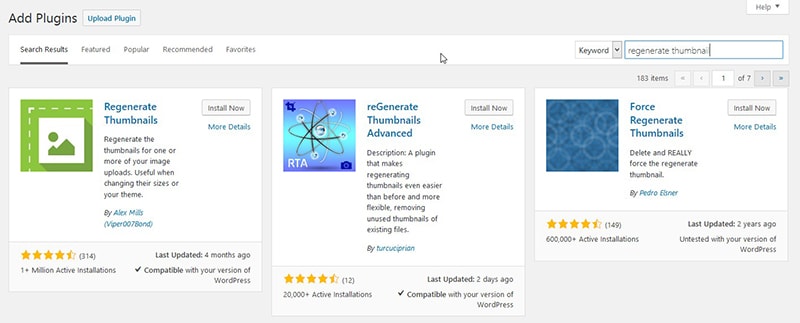
1. Install the Regenerate Thumbnails Plugin
- Go to Plugins → Add New.
- In the search field, type:
regenerate thumbnails. - Install and activate the plugin.
Regenerate Thumbnails plugin link: https://wordpress.org/plugins/regenerate-thumbnails/
2. Run Regenerate Thumbnails
After the plugin is active, there are several ways to run regeneration.
a. Via Tools → Regenerate Thumbnails
- Go to Tools → Regenerate Thumbnails.
- You will see a page with options, for example:
- Regenerate all thumbnails.
- Regenerate thumbnails for featured images only.
- Click Regenerate Thumbnails For All Attachments to re‑generate all images.
- Wait for the process to complete.
b. Via Media → Library
- Go to Media → Library.
- If using List mode:
- A Regenerate Thumbnails link appears on each image item.
- If the plugin provides bulk options:
- You can select multiple images and run regeneration for those images only.
This approach is useful if you only want to regenerate certain images.
3. Process Time and Resources
- If you have many media files, regeneration can take quite some time.
- The more and larger the images, the heavier the server load.
- Ensure:
- Your internet connection is stable if monitoring the process via a browser.
- Server resources (CPU/RAM) are sufficient, especially on shared hosting.
If the process times out frequently:
- Try regenerating in small batches (e.g., via Media Library).
- Or contact hosting to see if execution limits are too strict.
4. After Completion
- Check several pages (home, single post, archive) to ensure:
- Images display with sizes and crops that match the new theme.
- No images look pixelated or are too small/large.
If some images still look incorrect:
- Ensure the theme’s image size settings are correct.
- Run regeneration again if the previous process did not finish 100%.