
How to Configure and Post Using Kyz YouTube Importer (Vidpro)
This guide summarizes the use of the Kyz/KTZ YouTube Importer specifically in the Vidpro theme context.
Video Tutorial
Watch the tutorial video below:
Install and Activate the Ktz YouTube Importer Plugin
- Go to Plugins → Add New.
- Download the Vidpro theme package, extract it, and locate the plugins folder.
- Open the plugins folder and upload the
ktz-youtube-importer.zipfile. - Click Install Now, then Activate.
Kyz YouTube Importer Settings
Below is an explanation of the KTZ YouTube Importer settings. See the screenshot:
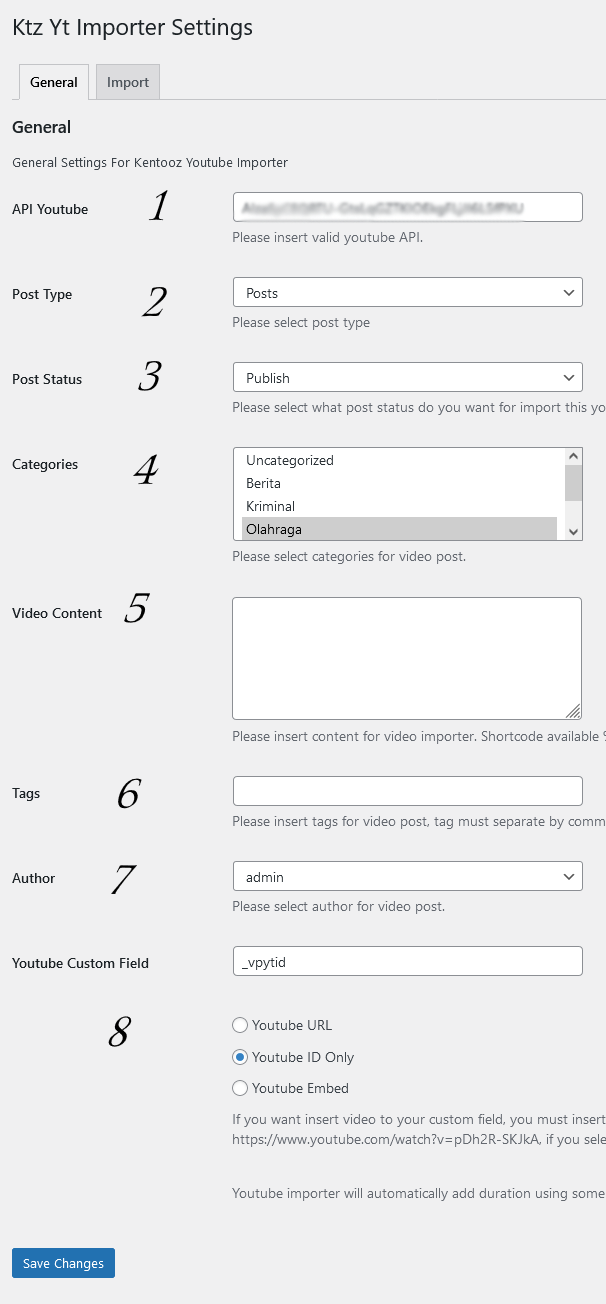
- YouTube API: you must enter your own YouTube API key. For a tutorial on obtaining a YouTube API key, see: Tutorial: How to Get a YouTube API Key V3.
2–7 can be read directly in the settings or in the video.
- YouTube Custom Field: configure this freely according to the custom fields of your theme. If you do not enter a custom field, the video will be inserted directly into the content. If you don’t use custom fields, leave it empty and choose YouTube URL.
Supported Themes
Kyz YouTube Importer can be used across various Kentooz themes, but custom field settings differ per theme. Examples:
Vidpro:
Use the YouTube custom field _vpytid and select YouTube ID Only.
Newkarma, Majalahpro, Bloggingpro, Wpberita, and Wpmedia
Two options:
- If you want to use Oembed, use the YouTube custom field MAJPRO_Oembed and select YouTube URL.
- If you want to use Iframe, use the YouTube custom field MAJPRO_Iframe and select YouTube Embed.
Superfast and Galepro:
These themes do not have dedicated video settings. Enter the URL directly in the content; leave the YouTube custom field empty and select YouTube URL. The post will usually auto‑convert the YouTube URL to an embed. If it fails, select YouTube Embed.
For other themes, leave the YouTube custom field empty and select YouTube URL or YouTube Embed, unless the theme has specific video settings.
Import Tab
Example usage of the Import tab: 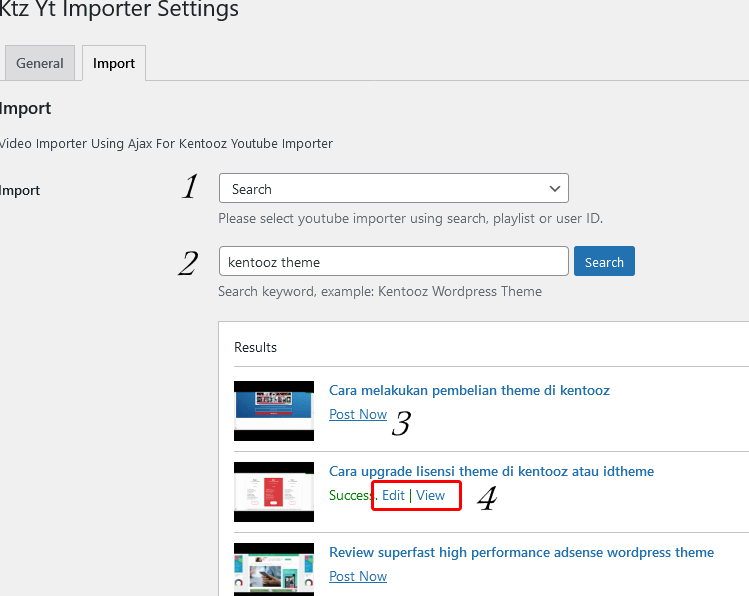
- Import Settings: choose Playlist, Search, or Channel ID. If you select Playlist, choose playlist and enter only the Playlist ID. If you select Search, enter your desired keyword. If you select Channel ID, enter only the Channel ID.
- Search Form: enter a Keyword, Playlist ID, or Channel ID according to the selected option, then click Search to show results.
- Result: after results appear, click Post Now to post with your configured settings and selected items.
- Success Posting: after posting succeeds, choose to edit or view the post.
Important Notes
- Ensure the YouTube API is active and entered in the plugin settings.
- You can find the KTZ YouTube Importer file in the plugins folder of the packed Vidpro theme. See the video.
- If you use custom fields, ensure they are configured in your theme.
- Your hosting must have CURL and JSON modules enabled. Minimum PHP 7.2 and use the latest WordPress.