
How to Change the Search Permalink or URL in WordPress
By default, WordPress search pages use the URL format:
https://yourdomain.com/?s=keyword
In some themes, including Idtheme themes, you may want to change it to:
https://yourdomain.com/search/keyword
1. Configure WordPress Permalinks
- Go to Settings → Permalinks.
- Choose an SEO‑friendly structure, for example:
Post name(/%postname%/).
- Save changes.
This ensures a clean post URL structure before changing the search URL.
2. Change the Search URL with Code (Tutorial 1: with .html)
The original tutorial provides two examples:
- A URL with the
.htmlextension at the end. - A URL without
.html.
a. First tutorial (with .html extension)
Desired format example:
https://yourdomain.com/info/keyword.html
Steps:
- Open the
functions.phpfile in your child theme (recommended) or active theme. - Add code according to the snippet provided in the Idtheme documentation (gist link):
- Save changes. See this example:
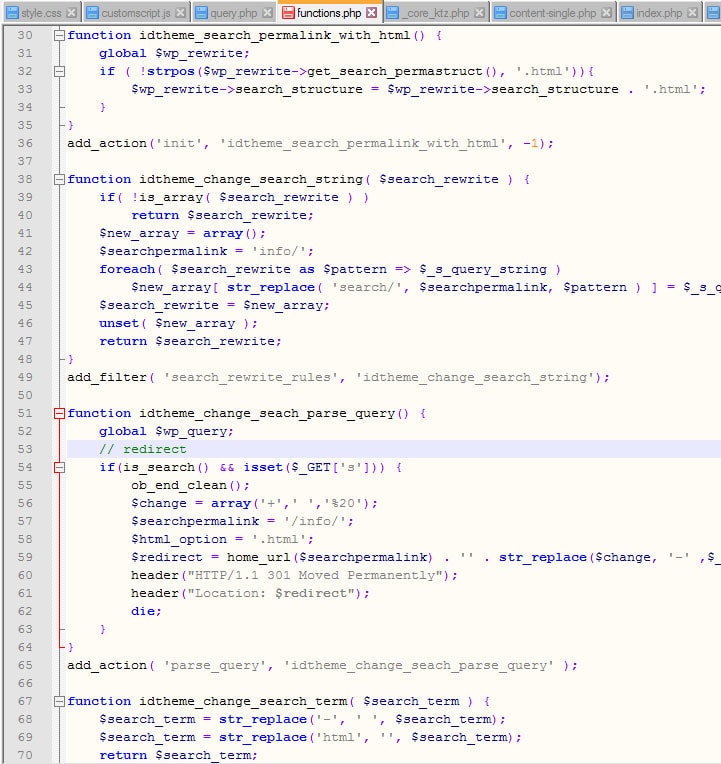
After adding the code:
- Go to Settings → Permalinks.
- Click Save Changes to perform a flush rewrite rules.
This is important so WordPress and the server recognize the new URL structure.
b. Second tutorial (without .html extension)
If you want the format:
https://yourdomain.com/info/keyword/
Steps:
- Open
functions.phpagain in your child theme or theme. - Replace the previous code with another snippet:
- Save changes.
Then repeat the flush rewrite rules step:
- Go to Settings → Permalinks.
- Click Save Changes without changing anything.
3. Change the “info” Prefix to Another Name
In the examples above, the info prefix is used.
You can replace it with any word as needed (e.g., search, cari, etc.).
Principle:
- Open the snippet you are using.
- Find the text
info. - Replace it with your desired prefix.
- Save the file and flush rewrite rules again via Settings → Permalinks.
4. Change the Search Form Action in the Theme
In some themes, the search form can be directed to the /search/ URL.
Concept example:
- Change the form action from:
action="<?php echo home_url('/'); ?>"
- To:
action="<?php echo home_url('/search/'); ?>"
Ensure the name="s" parameter remains so WordPress recognizes the keyword.
5. Flush Rewrite Rules
After adding rewrite rules (via plugin or code):
- Revisit Settings → Permalinks.
- Click Save Changes without changing anything.
This forces WordPress to refresh rewrite rules.
6. Testing
- Try using the search form on the front end.
- Ensure:
- The URL changes to
/search/keyword. - Search results still display normally.
- The URL changes to
If a 404 error occurs:
- Recheck the rewrite/redirect rules.
- Ensure the server (Apache/Nginx) allows mod_rewrite or the rules you added.