
WordPress Speed Optimization
Page load speed significantly affects user experience, SEO, and conversions. This guide explains technical and practical steps to speed up WordPress using a combination of plugins and server/theme settings.
This is a general guide and can be applied to various WordPress themes.
1. Choose the Right Hosting
- Use a hosting provider with a good reputation and responsive support.
- For shared hosting, choose a plan with adequate specs (CPU, RAM, IO) so it doesn’t “choke” when traffic spikes.
- If using a VPS, commonly recommended providers:
- DigitalOcean
- Vultr
- OVH
- Server location and network quality also affect Time To First Byte (TTFB).
2. Use a Lightweight Theme
- Avoid themes that load large images on the homepage.
- Ensure theme images aren’t just resized with CSS/HTML (e.g., showing a 2000px image in a 300px box), which slows loading.
- Pay attention to the number of CSS and JavaScript files used by the theme:
- Too many files and requests add load time.
- Well‑structured themes typically aggregate and minimize assets.
- For blog/magazine sites, choose themes focused on content and performance.
3. Reduce Plugin Use
- The more plugins you have, the more scripts and queries run in the background.
- Install plugins only when truly needed.
- Avoid installing multiple plugins with similar functions (e.g., multiple SEO or security plugins at once).
Page Builder
- All page builders add overhead, whatever the type.
- For pure blog/magazine sites, it’s recommended not to use a page builder.
- If you need a builder, use Gutenberg (WordPress block editor) because:
- It’s integrated with WordPress core.
- Many additional block plugins are available.
4. Optimize Images
Images usually account for the largest page size.
4.1 Compress Images Before Upload
- Compress images manually before uploading.
- Recommended online services:
4.2 Scaled Images (Image Size vs Layout)
- Match image sizes to the layout used.
- Example:
- If the homepage thumbnail is 300×150 px, don’t use a 2000×1000 px image and rely on CSS downscaling.
- On services like GTmetrix, this appears as “Serve scaled images”.
- Solutions:
- Configure theme image sizes to request appropriate dimensions.
- Ensure
add_image_sizeand calls likethe_post_thumbnailuse the correct size.
4.3 Image Optimization Plugins
If you have already uploaded many images, use optimization plugins:
- Smush it: https://wordpress.org/plugins/wp-smushit/
- EWWW Image Optimizer: https://wordpress.org/plugins/ewww-image-optimizer/
- Compress JPEG & PNG images (TinyPNG): https://wordpress.org/plugins/tiny-compress-images/
Notes:
- Free plugins may not compress as effectively as online services, but still help reduce file size.
5. Minify HTML, CSS, and JS with Autoptimize
One of the key steps to speed up WordPress is minifying and combining HTML, CSS, and JavaScript files.
5.1 Install Autoptimize
- Install the Autoptimize plugin: https://wordpress.org/plugins/autoptimize/
- Activate the plugin.
Go to Settings -> Autoptimize to configure.
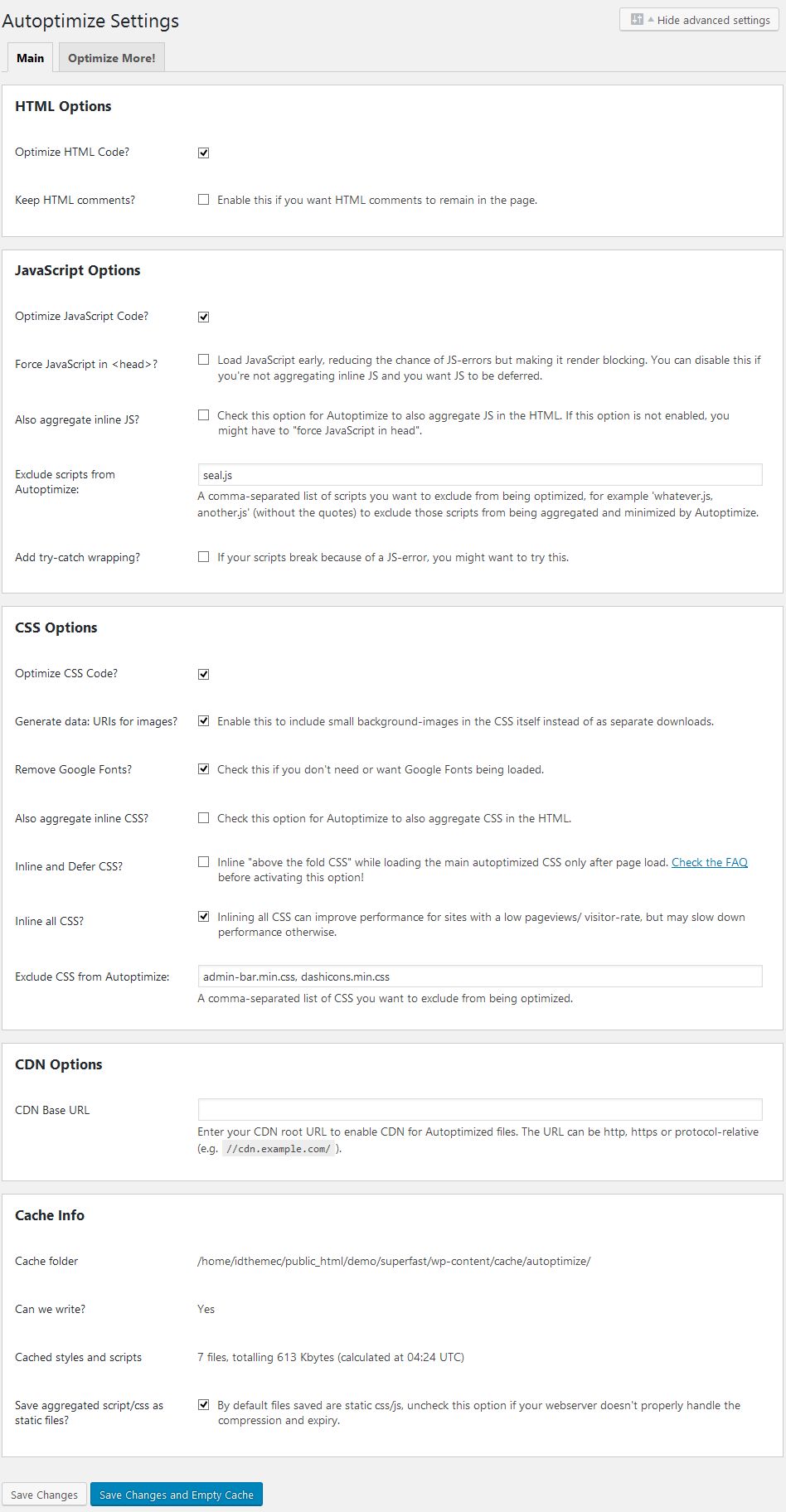
5.2 Basic Autoptimize Settings
- Click Hide advanced settings or Show advanced settings (depending on version) to reveal all options.
- Under HTML Options:
- Check Optimize HTML Code?
- Do not check Keep HTML comments? to remove HTML comments.
- Under JavaScript Options:
- Check Optimize JavaScript Code?
- Check the option to aggregate JS if your site and plugins are compatible.
- If errors occur, try disabling JS aggregation or exclude specific files.
- Under CSS Options:
- Check Optimize CSS Code?
- Check Aggregate CSS-files? to combine CSS.
- You can enable inline critical CSS if needed.
5.3 Important Notes about jQuery
- Do not arbitrarily remove or exclude
jquery.js. - Many theme and plugin scripts depend on WordPress’s built‑in jQuery.
- If you fill Exclude scripts from Autoptimize, ensure jQuery is handled correctly or excluded per plugin/theme recommendations—do not remove it entirely.
5.4 Example Minify Result
- Autoptimize can transform HTML/CSS/JS into a single long line.
- This is normal and helps reduce file size and speed up loading.
For visuals, see the Autoptimize settings example I used:
6. Cache Plugins
Beyond minification, cache plugins serve static pages to visitors, reducing server load.
Popular cache plugins:
- WP Fastest Cache: https://wordpress.org/plugins/wp-fastest-cache/
- WP Super Cache: https://wordpress.org/plugins/wp-super-cache/
- W3 Total Cache: https://wordpress.org/plugins/w3-total-cache/
- Litespeed Cache: https://wordpress.org/plugins/litespeed-cache/
- Wp Rocket: https://wp-rocket.me/
General recommendation:
- WP Fastest Cache is fairly easy to configure and effective for many cases.
WP Fastest Cache settings I applied alongside Autoptimize: 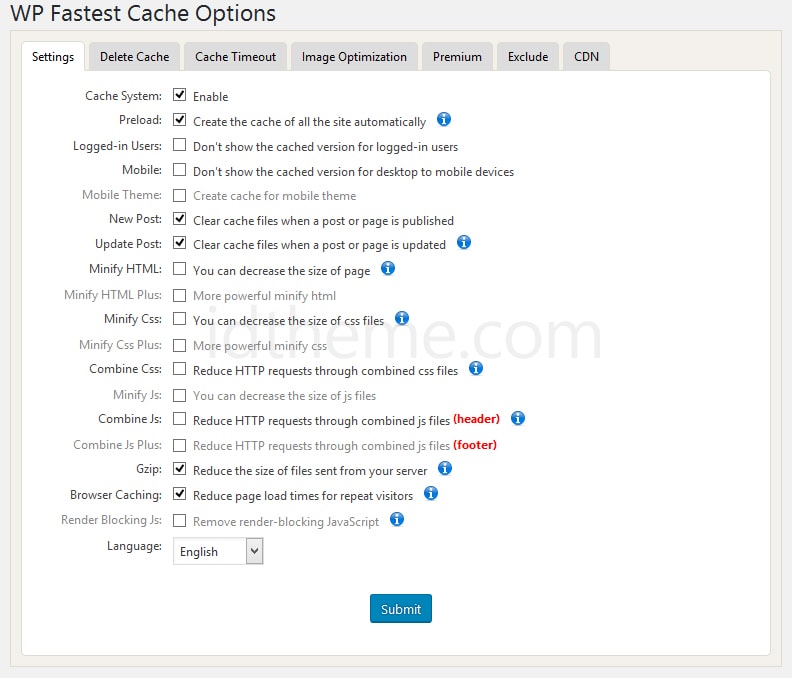
6.1 Cache Configuration Principles
- Enable:
- Page cache.
- Browser cache (expired headers).
- GZIP compression (if not enabled at the server level).
- Do not enable every “extreme” feature at once without testing; it may conflict with other plugins.
- After changing settings, always:
- Clear the plugin cache.
- Test the site in incognito mode / on another device.
7. Scripts, Ads, and Other Plugins
7.1 Plugin Compatibility
- Some plugins are not “friendly” to aggressive optimization (e.g., minifying and combining JS/CSS).
- Example: certain builders or page builder plugins may break if JS is combined/deferred too aggressively.
- If layout breaks after enabling optimization:
- Try excluding specific JS/CSS files.
- Temporarily disable the combine feature, then test again.
7.2 Ad Scripts (Google AdSense, etc.)
- Use scripts with the
asyncattribute so ad scripts don’t block rendering. - Use responsive ad units.
- Avoid too many ad units on one page as they significantly impact speed and CLS (layout shift).
7.3 Reduce Unnecessary Plugins
- Remove or deactivate unused plugins.
- Use one plugin per primary function (e.g., one cache plugin, one SEO plugin).
8. Server, GZIP, and CDN
8.1 Server Settings
- Ensure the server supports:
- GZIP compression or Brotli.
mod_expiresfor cache header settings (on Apache).mod_pagespeedif available (not mandatory).
- Many hosting panels now provide a GZIP/Compress toggle in cPanel or native panels.
8.2 CDN (Content Delivery Network)
- A CDN serves static content (images, CSS, JS) from servers closer to visitors.
- Example of free CDN:
- Cloudflare (the free plan is sufficient for many sites).
- CDN benefits:
- Reduces load on the main server.
- Improves speed in other geographic locations.
9. Practical Checklist
Use the following checklist as a guide during optimization:
- [ ] Hosting selected with adequate specs.
- [ ] Lightweight theme that doesn’t over‑load scripts.
- [ ] Plugin count minimized with no duplicate functions.
- [ ] Images compressed before upload.
- [ ] Image sizes matched to layout (scaled images).
- [ ] Image optimization plugin enabled if needed.
- [ ] Autoptimize configured to minify and combine CSS/JS/HTML.
- [ ] jQuery not removed or disabled arbitrarily.
- [ ] Cache plugin installed and configured (WP Fastest Cache / others).
- [ ] Ad scripts use async and are not excessive.
- [ ] GZIP/compression enabled on the server.
- [ ] CDN used (optional but recommended).
10. References
- How to speed up WordPress with plugins and optimization: https://www.idtheme.com/cara-percepat-loading-wordpress-dengan-plugin/