
How to Install and Configure the Vidpro Theme
Vidpro is a video theme focused on listing and single video views.
Below are installation steps and basic settings.
Video Tutorial
Please watch the tutorial video below for a complete guide:
Installation Steps
- Download the theme file from the member area.
- Extract the package you downloaded, then upload vidpro.zip via Appearance > Themes > Upload Theme.
- Activate the Vidpro theme.
- Install and activate the recommended/required plugins.
Supporting Plugin Installation
After the theme is active, a notice usually appears to install plugins:
- Required theme plugins.
- Recommended plugins (e.g., One Click Demo Import, etc.).
Follow these steps:
- Click Begin installing plugins.
- Install and activate all recommended plugins.
License Activation
- Go to Plugins → Vidpro License.
- Enter the license key you received from the member area:
- Log in to https://member.kentooz.com
- Open the License menu:
https://member.kentooz.com/softsale/license
- Copy the license key for the Vidpro theme, then paste it on the Vidpro License page.
- Save, and ensure the license status is active so updates and support work properly.
Import Demo
- Go to Appearance > Import Demo Data.
- Click Import Demo Data, install required plugins, and wait until complete.
- The layout will follow the demo; then adjust menus, widgets, and customizer settings.
After completion:
- Page structure, menus, and widgets will closely match the official demo.
Appearance Settings via Customizer
Vidpro has comprehensive appearance settings in Appearance → Customize. Settings screenshot:
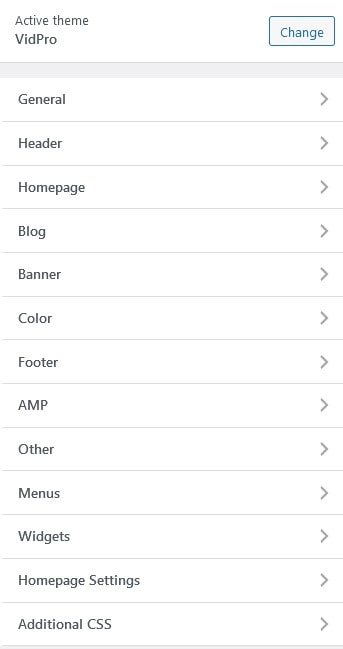
General Tab
- General theme settings:
- Global layout (boxed / fullwidth).
- Background image.
- Font settings:
- Choose Google Fonts.
- Set heading and body font sizes.
Header Tab
- Header area settings:
- Site icon and logo.
- Header background color.
- Header background image (if used).
- Main menu settings:
- Menu layout.
- Menu colors (normal, hover, active).
Homepage Tab
- Configure Headline Carousel.
- Configure homepage modules (content blocks on the homepage).
Blog Tab
- Configure blog layout:
- Sticky sidebar.
- Site navigation.
- Blog content.
Banner Tab
- Configure blog banners:
- More than 15 banners available.
Color Tab
- Configure theme colors:
- General color.
- Header Color.
- Footer Color.
AMP Tab
- Only appears if you use the official AMP plugin.
- Configure AMP banners:
- More than 10 AMP banners available.
Footer Tab
- Configure the footer:
- Footer background color.
- Copyright text.
- Number of widgets displayed in the footer.
Menus Tab
- Configure navigation menus (shortcut to Appearance → Menus).
Other Tab
- Miscellaneous settings:
- Header Script.
- Footer Script.
- Google Analytics.
- FB Pixel.
Widgets Tab
- Configure sidebar and module widgets:
- Widgets in the main sidebar.
- Widgets in the footer.
Additional CSS Tab
- Add custom CSS for advanced customization.
See the tutorial video above for more details.
Server Requirements
Recommended server setup for running Newkarma well:
- Apache with PHP 7.2+.
- WordPress 5+ (latest version recommended).
- Curl and OpenSSL modules enabled (required).
If you still use PHP below 7.2, upgrading is strongly recommended for security and compatibility.