
Menu Settings in the Jurnalpress Theme
This guide explains how to create and configure navigation menus on your website, including special features provided by the theme.
Video Tutorial
Here is the video tutorial for Menu Settings in the JurnalPress theme:
For detailed text instructions, see below.
Create a New Menu
- Go to Appearance > Menus.
- Click create a new menu.
- Name the menu (for example: Main Menu), then click Create Menu.
Add Items to the Menu
- On the left, you will see boxes for Pages, Posts, Custom Links, and Categories.
- Select the items you want to add to the menu.
- Click Add to Menu.
- The items will appear in the menu structure on the right.
- You can drag and drop items to change the order or create submenus (dropdowns).
Additional Menu Item Settings
This theme provides additional options for each menu item to enhance its appearance. Click the small arrow on a menu item to view these options:
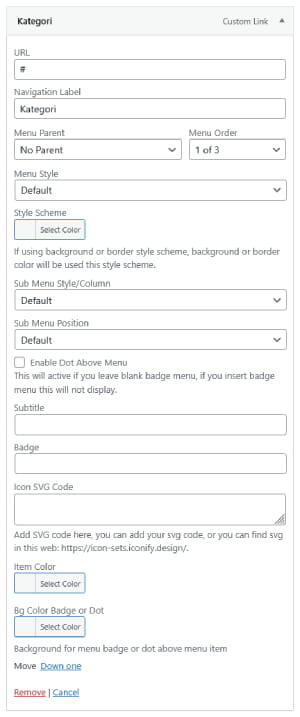
- Menu Style: Configure the visual style of the menu item; three styles are available: Default, Background, and Border.
- Style Scheme: Choose a custom color scheme for menu items when using the Background and Border styles.
- Submenu Style/Column: Configure the submenu display (for example, to create a Mega Menu).
- Submenu Position: Set where the submenu appears; three options: Left, Right, and Center.
- Enable Dot Above Menu: Display a small dot above the menu (often used to mark important or active items).
- Subtitle: Add a small line of text below the main menu label.
- Badge: Add a small label (such as "New", "Hot") above the menu.
- Icon SVG Code: Insert SVG code to display an icon on the menu. You can find icons on Iconify.
- Item Color: Choose the text color for the menu item.
- Bg Color Badge or Dot: Choose the background color for the badge or dot above the menu.
Configure Menu Locations
This theme supports four primary menu locations. Configure them under the Manage Locations tab:
- Primary: The main menu that typically appears in the top header.
- Secondary: An additional menu that may appear in the top bar or other header areas.
- Side Menu (Mobile): A dedicated menu that appears when accessed on mobile devices (responsive view).
- Footer Menu: The menu displayed in the website footer, located in the copyright section.
Don't forget to click Save Changes after configuring the menu locations.